
大家好,我是超哥。今天教你在用 Claude Code + Ollama 搭建一个完全免费的本地写代码神器,不用API、无限次使用,直接在你自己的 Mac/Windows电脑上跑,下面跟我一步一步搭建起来,小白也能轻松搞定。

一、安装Windows Terminal
Windows 终端程序是一款新式、快速、高效、强大且高效的终端应用程序,适用于命令行工具和命令提示符,PowerShell和 WSL 等 Shell 用户。主要功能包括多个选项卡、窗格、Unicode、和 UTF-8 字符支持,GPU 加速文本渲染引擎以及自定义主题、样式和配置。
下载地址:https://apps.microsoft.com/detail/9n0dx20hk701?hl=zh-CN&gl=CN
二、安装 WSL
在 PowerShell(管理员)执行安装WSL命令:
wsl --install
安装完成后重启电脑,然后安装Ubuntu命令:
wsl --install -d Ubuntu
打开Windows Terminal,来到ubuntu
三、更新Ubuntu系统
更新Ubuntu系统命令:
sudo apt update
sudo apt upgrade -y
四、安装环境
1. 安装 Python
安装 Python命令:
sudo apt install python3-pip python3-venv -y
2. 安装解压缩软件
安装解压缩软件命令:
sudo apt install -y zstd
3. 安装nodejs
安装 nodejs 命令:
curl -fsSL https://deb.nodesource.com/setup_22.x | sudo -E bash -
sudo apt install -y nodejs
4. 安装 Git
安装 Git 命令:
sudo apt update
sudo apt install -y git
检查有没有成功:
node -v
npm -v
git --version
五、安装ollama
ollama官网:https://ollama.com/
ollama claude code介绍:https://docs.ollama.com/integrations/claude-code
安装 ollama 命令:
curl -fsSL https://ollama.com/install.sh | sh
下载ollama AI模型
ollama qwen3-coder模型列表:https://ollama.com/library/qwen3-coder
安装ollama AI模型命令:
ollama pull qwen3-coder:30b
六、安装配置Claude Code
安装Claude Code命令:
curl -fsSL https://claude.ai/install.sh | bash
如果提示下图红圈内容提示,执行图片里圈中的黄色的内容(每个人的不一样)
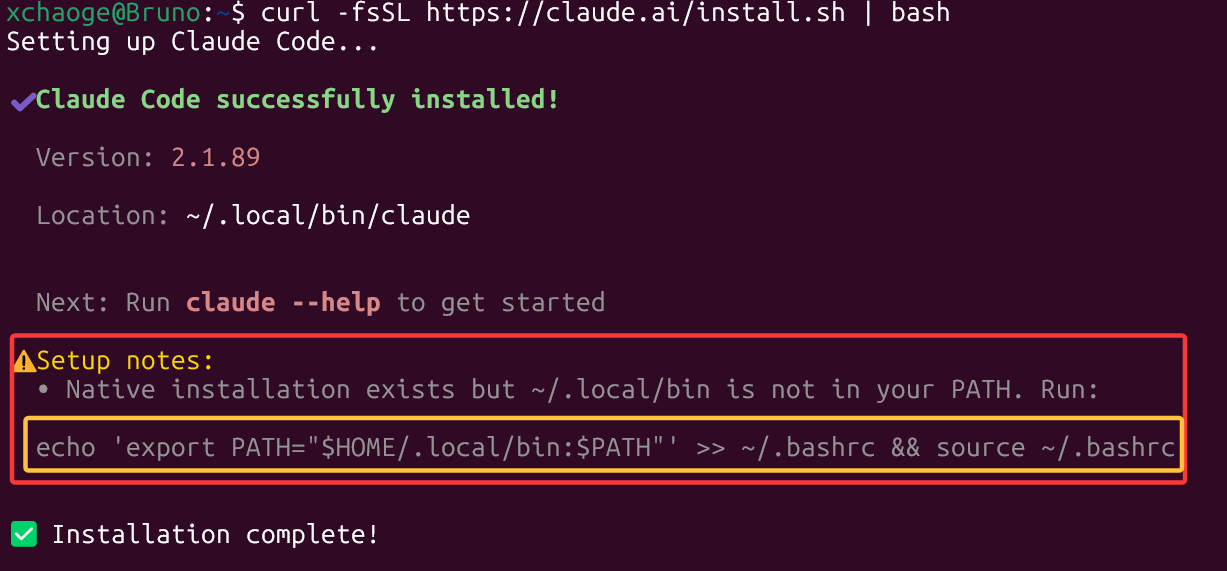
比如我的是echo 'export PATH="$HOME/.local/bin:$PATH"' >> ~/.bashrc && source ~/.bashrc,我执行的内容如下图:

七、Ollama连接Claude Code
执行命令:
ollama launch claude --config
八、测试Claude Code功能
在当前目录创建 ./hello.html 文件,html的内容是Hello X超哥!
生成文件的路径,其中xchaoge换成你们自己的名称:
\\wsl$\Ubuntu\home\xchaoge